Dynamo-Create new mulit sheets from excel (for Revit 20 : 26)
$5.00
Create multiple Revit sheets from Excel with Dynamo.
Use Sheet1 with Column A = Sheet Number and Column B = Sheet Name, choose a Title Block, and generate sheets automatically.
Description
It is compatible with Revit 2020 to 2026
Create multiple Revit sheets from Excel using Dynamo.
Import Sheet Number and Sheet Name from a simple Excel file and generate all sheets automatically with your chosen Title Block (and optional View).
Excel template (required)
Sheet name:
Sheet1Column A: Sheet Number (e.g.,
A01,A02,A03…)Column B: Sheet Name (e.g.,
sheet1,sheet2,sheet3…)No header row is required. Keep columns clean (no merged cells, no empty rows in the middle).
(Your screenshot matches this exactly.)
How it works (Dynamo steps)
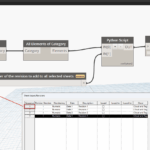
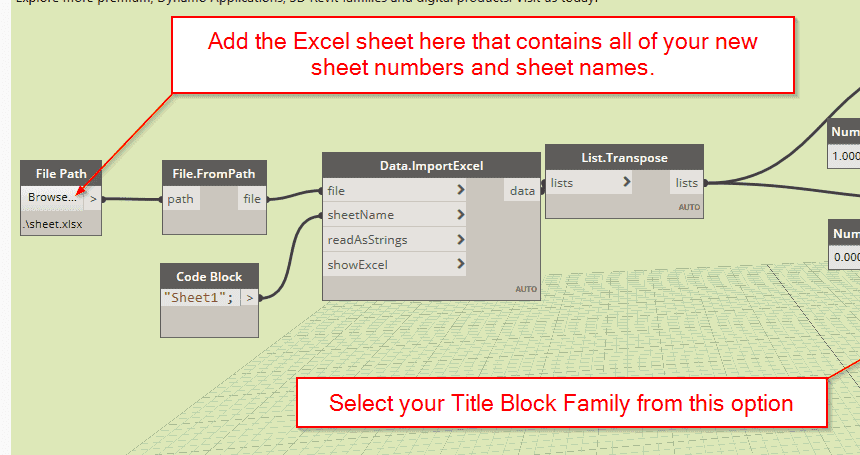
File Path → File.FromPath → Data.ImportExcel
sheetName="Sheet1"readAsStrings= true (recommended)showExcel= false/empty
List.Transpose the imported data so each column becomes a list.
Get columns:
List.GetItemAtIndex (index
0) → Sheet NumbersList.GetItemAtIndex (index
1) → Sheet Names
Pick Family Types → your Title Block.
(Optional) Pick a View from Views node to place on each sheet.
Feed everything into Sheet.ByNameNumberTitleBlockAndView.
What you get
Creates all sheets listed in Excel.
Applies the selected Title Block.
Optionally places the chosen View on each new sheet.
Notes & troubleshooting
Duplicates: If a Sheet Number already exists, Revit will skip it or throw an error—fix the number in Excel and re-run.
Blank rows: Remove blank/end rows to avoid null items.
Title Block: Ensure the family type exists in the project.
View: If you pass a view, make sure it isn’t already placed on another sheet.
- Which Revit version does this script work with?
It is compatible with Revit 2020 to 2026